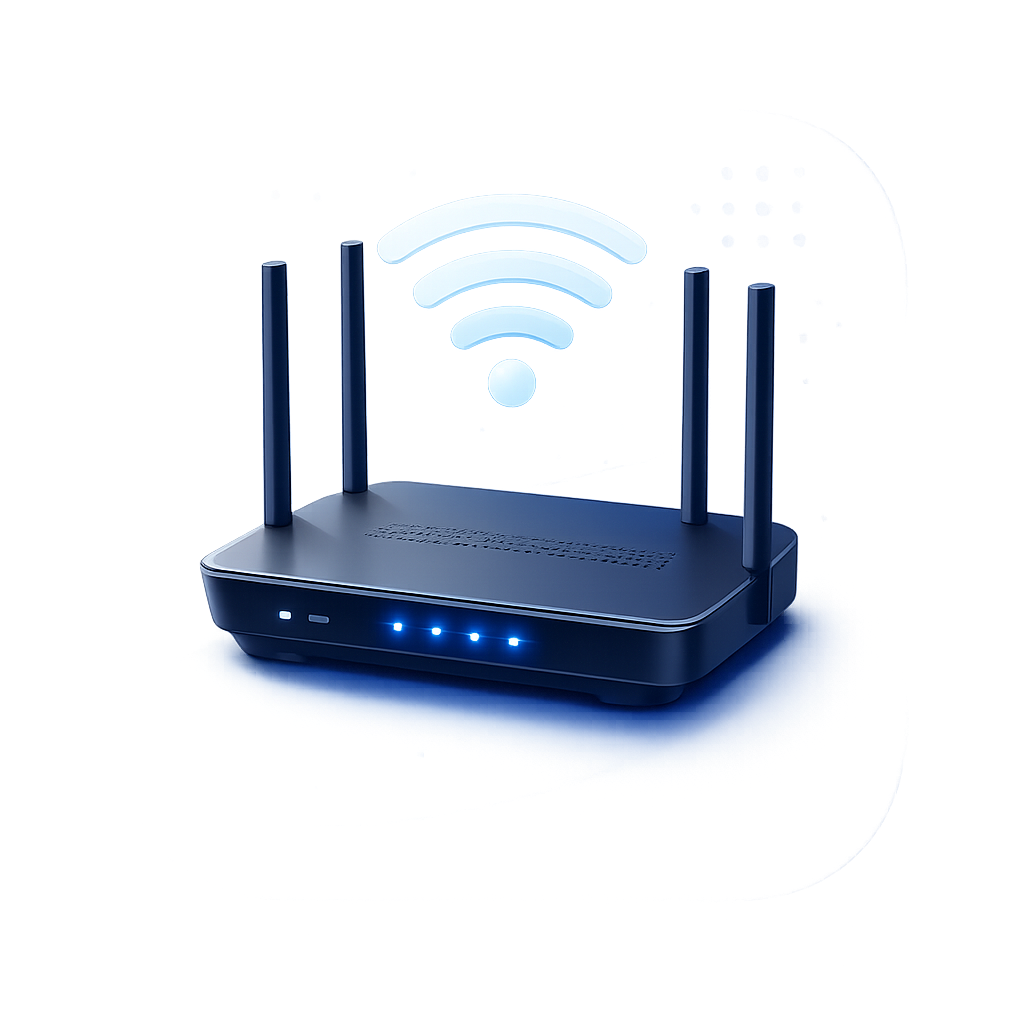
 Login WiFi Router
Type 192.168.1.1 into your browser and you're staring at your router's front door. For millions of home networks, this string of numbers is the only way to change a Wi-Fi password, kick off an unknown device, or figure out why the internet suddenly stopped working.
But if you've never logged into a router before, the whole thing feels intimidating. What exactly is this address? Why does it exist? And what do you do when typing it in gives you nothing but a spinning wheel?
Let's demystify it. No jargon, no assumptions — just everything you actually need to know.
What Is 192.168.1.1, Really?
It's not a website. It's not on the internet at all. It's a private IP address that lives entirely inside your home network.
Think of your router as the manager of every device in your house. Your phone, laptop, smart TV, game console, security camera — they all talk to each other and to the outside world through this one box. That box needs its own address so your devices know where to send requests. For many routers, that address is 192.168.1.1.
When you type it into your browser, you're opening a control panel stored on the router itself. Nothing leaves your house. Nothing gets sent to a server. It's a direct conversation between your browser and your hardware.
Why This Specific Number?
Networking standards reserve certain IP ranges exclusively for private, local use. 192.168.x.x is one of those ranges. These addresses can never be assigned to public websites, which means there's zero risk of accidentally visiting someone else's server when you're trying to configure your own router.
Manufacturers chose 192.168.1.1 because it's easy to remember, sits at the start of the usable range, and has become an industry convention. But it's not universal — more on that in a moment.
Which Routers Actually Use It?
Many major brands default to 192.168.1.1, including:
- Netgear (most models)
- ASUS (most models)
- Linksys (classic and newer models)
- TP-Link (some models; others use 192.168.0.1)
- D-Link (some models)
- Belkin, Motorola, TRENDnet, Zyxel
If yours doesn't respond to 192.168.1.1, it likely uses a different gateway. Check our complete router IP database to find yours instantly.
How to Log In (4 Steps, No Fluff)
1. Connect to your router first
Your device must be on the router's network — Wi-Fi or Ethernet. If you're on mobile data or a neighbor's open Wi-Fi, the page will never load. Ethernet is more reliable if you're about to make significant changes.
2. Open any browser
Chrome, Firefox, Safari, Edge — doesn't matter. Type http://192.168.1.1 directly into the address bar, not the search bar. Press Enter.
3. Enter your credentials
Older routers typically use admin / admin. Newer models asked you to create a custom admin password during initial setup. This is not your Wi-Fi password — it's the separate administrator login for the router itself.
4. You're in
The dashboard gives you access to Wireless, Security, Guest Network, Parental Controls, Firmware Upgrade, DHCP, QoS, and connected device management.
What to Do Once You're Inside
Most people log in for one of these reasons:
- Change Wi-Fi password: Wireless ? Wireless Security. Use at least 12 characters with mixed case, numbers, and symbols. Our Password Generator creates secure ones right in your browser.
- Rename your network (SSID): Pick something recognizable. Avoid personal info like your name or apartment number.
- Check connected devices: Look for "DHCP Clients," "Attached Devices," or "Network Map." See something unfamiliar? Change your Wi-Fi password immediately.
- Update firmware: System Tools ? Firmware Upgrade. Always use official manufacturer firmware. Never unplug during an update.
- Set up guest Wi-Fi: Keeps visitors and IoT devices isolated from your main network.
- Enable parental controls: Restrict access by time or block specific sites.
Page Won't Load? Try These Fixes (In Order)
This is where most people get stuck. Work through these before assuming anything is broken:
1. Turn off mobile data
Your phone may have silently switched to cellular because the Wi-Fi has no internet. Swipe down, disable mobile data, then try again.
2. Disable your VPN
VPNs route traffic externally and frequently block access to private/local IP addresses. Turn it off temporarily, access the router, then re-enable it.
3. Try incognito mode
Cached redirects and browser extensions interfere more than you'd think. Ctrl+Shift+N (Chrome) or Cmd+Shift+N (Safari) eliminates both variables instantly.
4. Confirm you're on the right network
Double-check your Wi-Fi settings. Being connected to a guest VLAN or a different network entirely will prevent access.
5. Restart the router properly
Unplug power, wait 30 seconds, plug back in. Wait 2–3 minutes for all lights to stabilize. Routers are computers — they freeze and crash just like laptops.
6. Find your actual gateway IP
If 192.168.1.1 genuinely isn't your router's address, find the real one: On Windows: Command Prompt ? ipconfig ? Default Gateway. On iPhone: Settings ? Wi-Fi ? tap ? ? Router. On Android: Wi-Fi settings ? tap network ? Gateway.
? Still Can't Connect?
Use our What Is My IP tool to verify your network configuration and confirm you're on the correct subnet.
Forgot the Admin Password?
The admin password and Wi-Fi password are two completely different things. If you've forgotten the admin login:
- Try
admin/adminoradmin/passwordif you never changed it. - Check the sticker on the bottom/back of the router.
- If all else fails, hold the Reset button for 10 seconds until LEDs flash. This restores factory defaults.
?? Warning: Factory reset erases everything — Wi-Fi name, password, port forwards, DNS, guest network. You'll set the router up from scratch. Only do this as a last resort.
Security Checklist While You're Logged In
Since you've already gotten in, take 60 extra seconds:
- Change the default admin password — admin/admin is public knowledge and exploited by botnets within minutes
- Enable WPA3 or WPA2 — never leave security set to WEP or Open
- Disable WPS — convenient but notoriously insecure unless you actively rely on it
- Disable remote management — unless you specifically need external access
- Review connected devices monthly and remove anything unrecognized
Quick Answers
Is 192.168.1.1 a website?
No. It's a private address that only works inside your local network. It cannot be reached from the public internet.
Can I log in from my phone?
Absolutely. Any mobile browser works as long as your phone is connected to the router's Wi-Fi.
Is it safe to change settings?
Yes, as long as you understand what you're changing. Make one change at a time and save. Most routers let you back up configuration under System Tools ? Backup & Restore.
How often should I update firmware?
Check every few months or whenever the manufacturer releases a new version. Firmware updates patch security vulnerabilities that attackers actively exploit.
Why doesn't "admin" work anymore?
Many newer routers force you to create a unique admin password during initial setup. The default credentials are disabled after first login for security reasons.
The Bottom Line
192.168.1.1 isn't magic — it's just your router's front door. Once you understand what it is and how to troubleshoot when it doesn't open, you have full control over your home network.
Change passwords regularly. Keep firmware updated. Review connected devices. Use strong admin credentials. These five habits take less than 10 minutes per year and prevent the vast majority of home network security issues.
And if the login page ever refuses to load again? You now know exactly what to do.